Bench press
- Set 1
- 80 kg × 8
- Set 2
- 80 kg × 8
- Set 3
- 80 kg × 8
 Life OS
Snap a meal, say a set, type what you spent. Life OS fills in the values for you to check and save, prepares your morning, reviews your week, and spots patterns across training, food, sleep, money, tasks and people.1
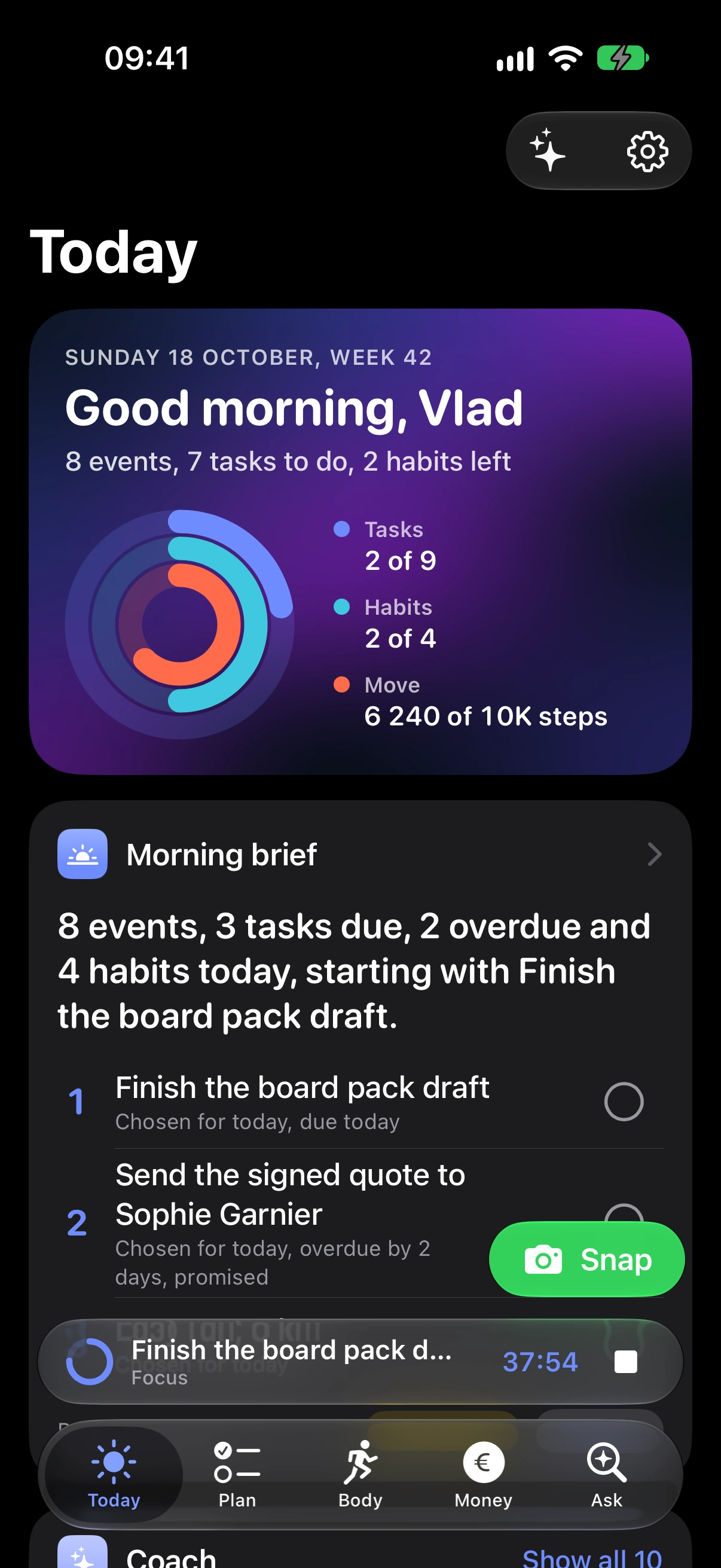
Rings that fill as your day does.
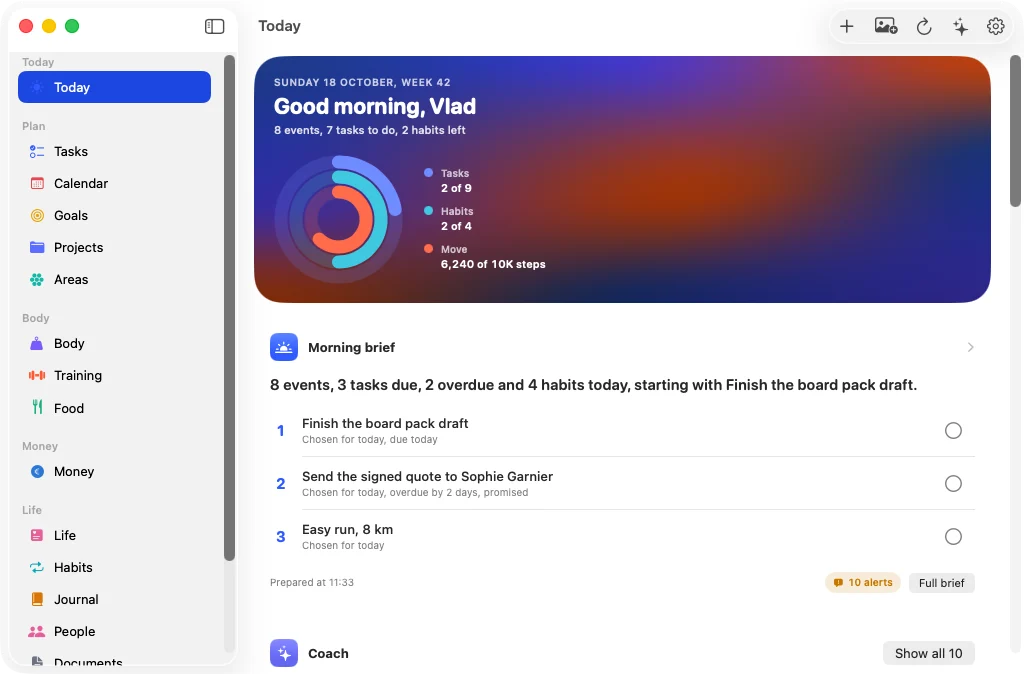
A phone rises into frame on a black stage. On screen, Life OS opens on Today: three rings for tasks, habits and steps fill from zero, and the first priority of the morning brief, Finish the board pack draft, is ticked, so the tasks ring moves on.
Type a set. Get a card, ready to save.
In the Capture sheet, bench 3x8 at 80 is typed. Life OS reads it on the device and shows a workout card for Bench press with three sets of 80 kg by 8. Save is tapped and the app confirms: Logged 3 sets of Bench press.
Water and weight, from one line.
In the Capture sheet, 500 ml water and 79.4 kg is typed. Life OS reads it on the device into two cards, 500 ml of water and a weight of 79.4 kg, and both are saved at once.
A food label becomes values per 100 g.
A photo of a French nutrition label is chosen. Life OS reads it on the device and fills in energy, protein, carbohydrates, fat and fibre for the portion on the label. The food is named Granola and saved.
Your rest timer lives in the Dynamic Island.
During a workout, Life OS goes to the background. The Dynamic Island shows the rest countdown. A long press expands it: Overhead press, set 2 of 3, the time left, and a Done set button, which is tapped.
Three priorities, and why each one made the list.
The morning brief opens: a headline for the day, three priorities each with its reason, such as due today or overdue by 2 days and promised, then the schedule and what needs attention.
Every unfinished commitment gets a decision.
The weekly review starts with the week in numbers, moves to wins, then to unfinished commitments. Three of them get a decision: this week, done, and waiting.
Sets, rest and today’s food on Apple Watch.
A watch rises into frame. On screen, the Life OS watch app in demo mode: today’s calories, protein and water as rings, a strength set prefilled with its weight and reps beside last time and the coach’s note, the rest counting down with the next set named, and a run with its time, heart rate, active energy and distance.
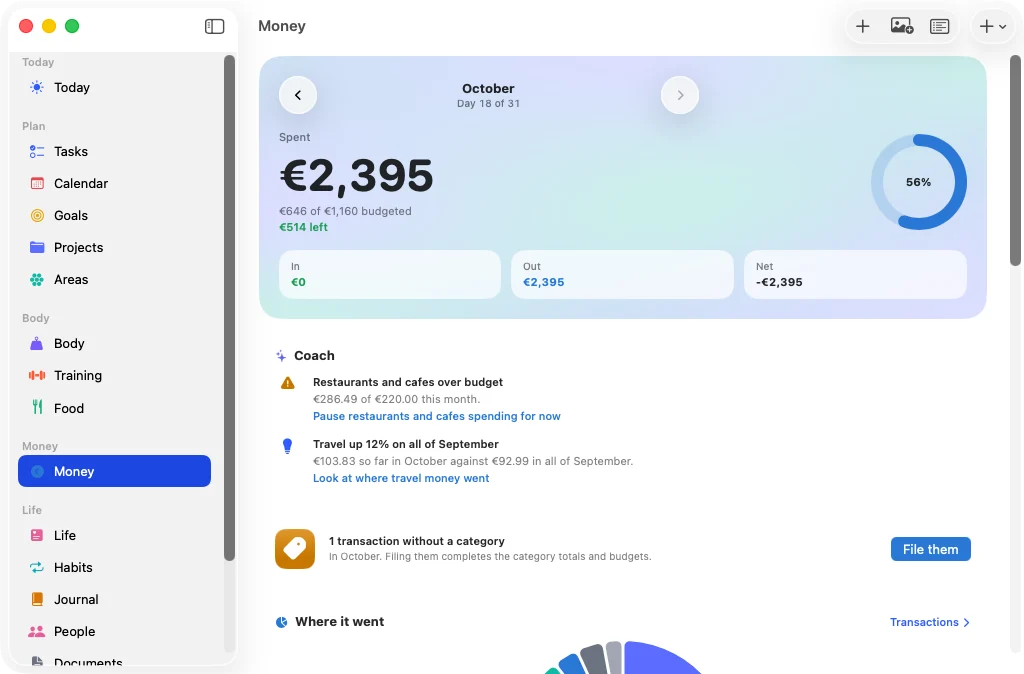
The same Life OS, with a sidebar on the Mac.
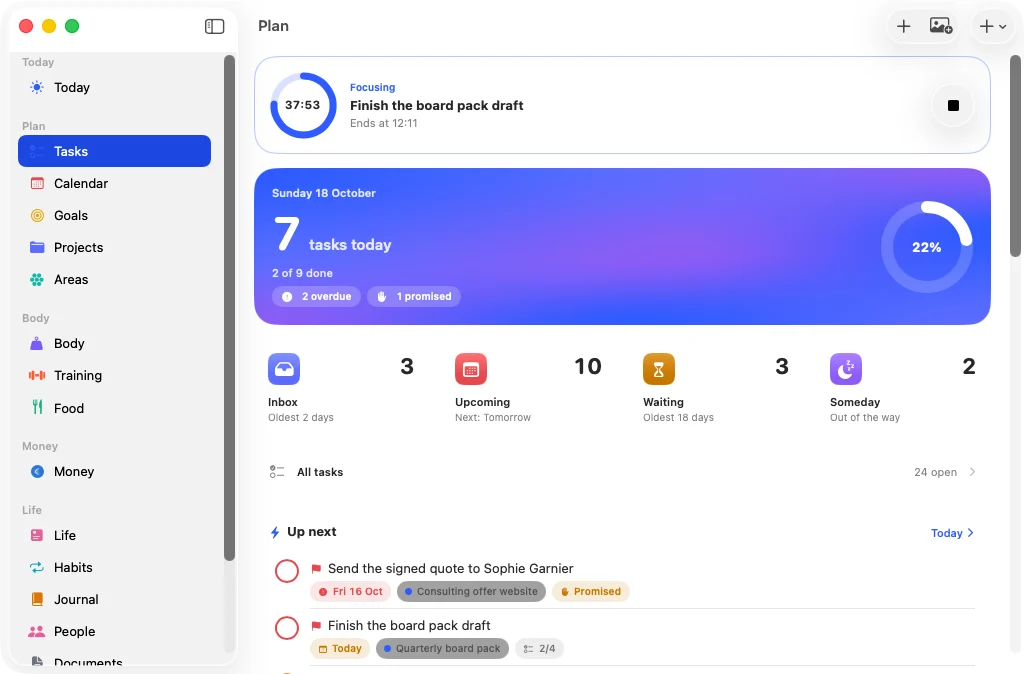
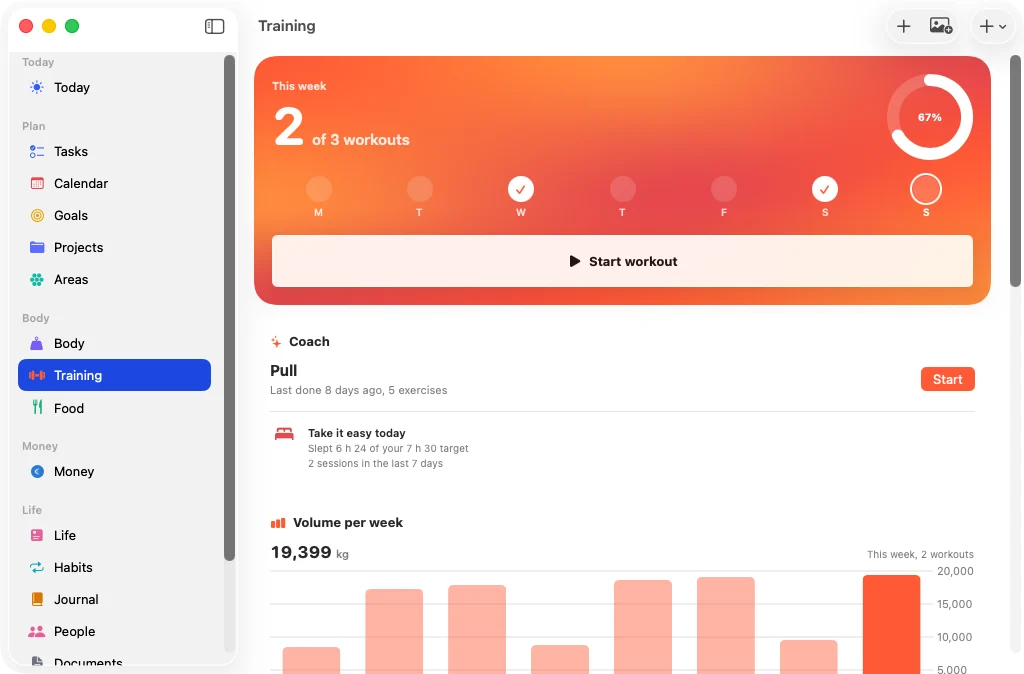
The Life OS window for Mac rises onto a black stage, with its sidebar of every part of life, and moves between Today, Tasks, Training and Money.
Capture
Type it, say it or photograph it. Life OS reads it and fills in the values: sets and weights, grams and calories, amounts and days. You check the cards, change anything, and save with a tap. Nothing is saved until you tap.
Write bench 3x8 at 80, 500 ml water or ran 5 km in 27 minutes in the capture sheet or the Ask tab, or dictate it.
Clear sentences are read by rules on your iPhone. The rest goes to the assistant you chose, and anything it cannot place becomes a task with your own words, never a guess.
Every record is a card you can edit, with where its values came from. Save, or save one card at a time, and Life OS says what it logged.
Pick a sentence and see the cards Life OS makes from it.
“bench 3x8 at 80” becomes one card:
Bench press
“Bench” is matched to Bench press in the exercise library.
“500 ml water and 79.4 kg” becomes 2 cards:
Water
Weight
“12 euros lunch Monoprix” becomes one card:
Lunch Monoprix
“ran 5 km in 27 minutes” becomes one card:
Running
“slept badly, mood 2” becomes one card:
Slept badly
“todo: call mum tuesday 10am” becomes one card:
Call mum
“received 50 € from Marie” becomes one card:
Marie
“called Camille about the weekend” becomes one card:
Camille Martin
Matched to Camille Martin, a person already in your list.
These are the records the app’s own tests expect from each sentence, with dates as of Sunday 18 October 2026, the day the tests use. Nothing runs in your browser: this is a replay, not the app.
Point the camera at your plate. Claude analyses the photo into foods with grams, calories and macros, filled in for you to check, adjust with a portion slider and save to the right meal.2
Every value is marked as an estimate, with where it came from.
Dictation fills the same field, and stops by itself when you pause.
A nutrition label in French or English becomes values per 100 g. A receipt becomes an expense, and a cardio machine’s screen becomes a session. The text is read on your iPhone and the photo stays there. A label is read by rules; a receipt’s or screen’s text goes to the assistant you chose.
Packaged food is looked up in Open Food Facts, then logged with the portion you ate.
Capture is never more than a tap away: the Snap button on Today and Body, the Quick capture control, the Food widget, and Siri with “Log something in Life OS.”
Coach
Every morning Life OS prepares the day. Every Sunday it looks back with you. The facts come from your data; the assistant only puts them into words.
Your brief arrives as a notification and waits on Today: three priorities, each with the reason it made the list, such as due today, or overdue and promised.
Events and time blocks, and what needs attention: overdue tasks, bills due in the next three days, documents about to expire, birthdays and people to reach out to.
Last night’s sleep, your weight trend, yesterday’s calories and protein against your targets, and what you have spent this month against your budget.
The weekly review starts with the week in numbers, then your wins: tasks done, records, streaks.
Every unfinished commitment gets one decision: done, this week, reschedule, waiting or drop, applied to the task at once.
Check in on goals, score your life areas, write down what went well, and pick next week’s top three.
Detectors run across food, training, sleep, money, tasks, habits, people and documents, and suggest a next step. These are notes Life OS wrote for its demo data.
Money
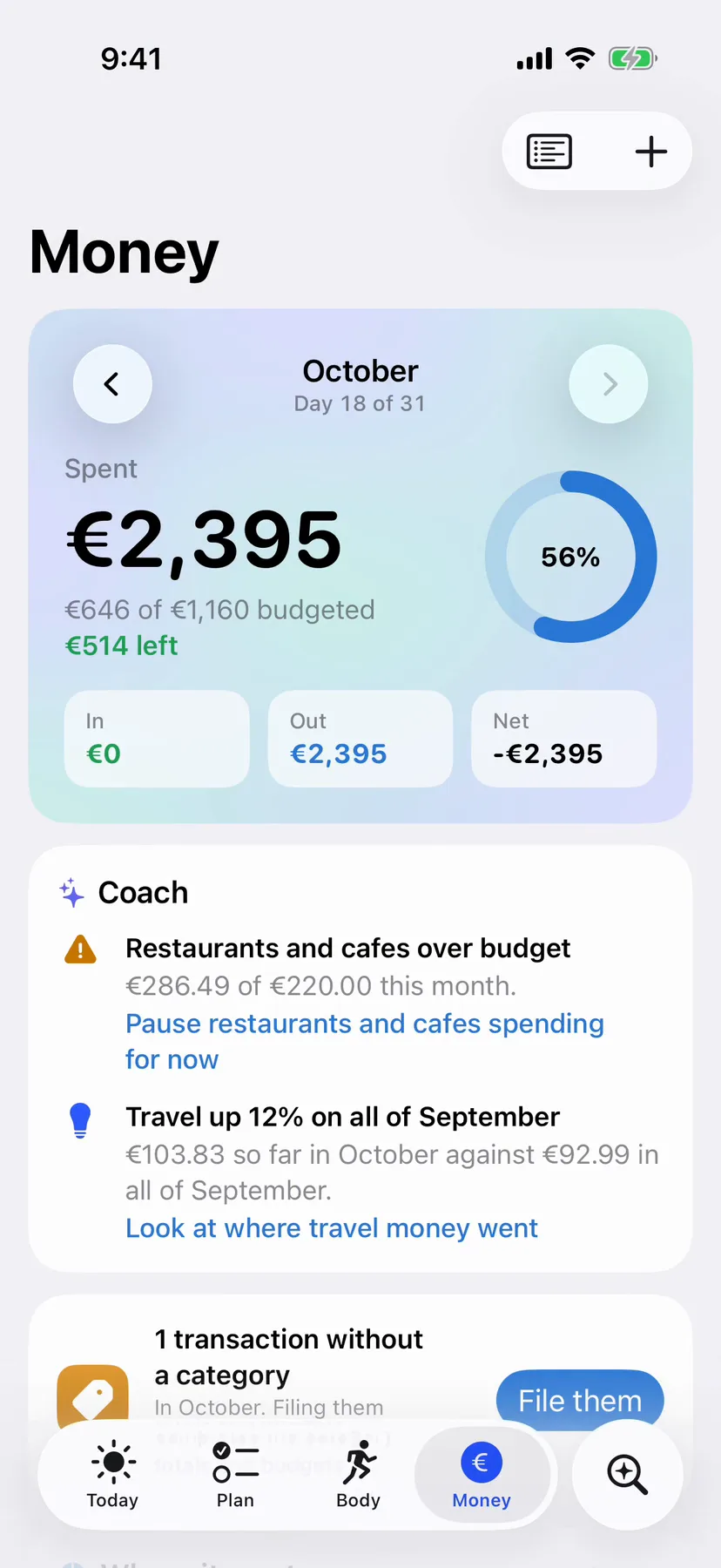
Restaurants and cafes over budget
€286.49 of €220.00 this month.
Pause restaurants and cafes spending for now
Training
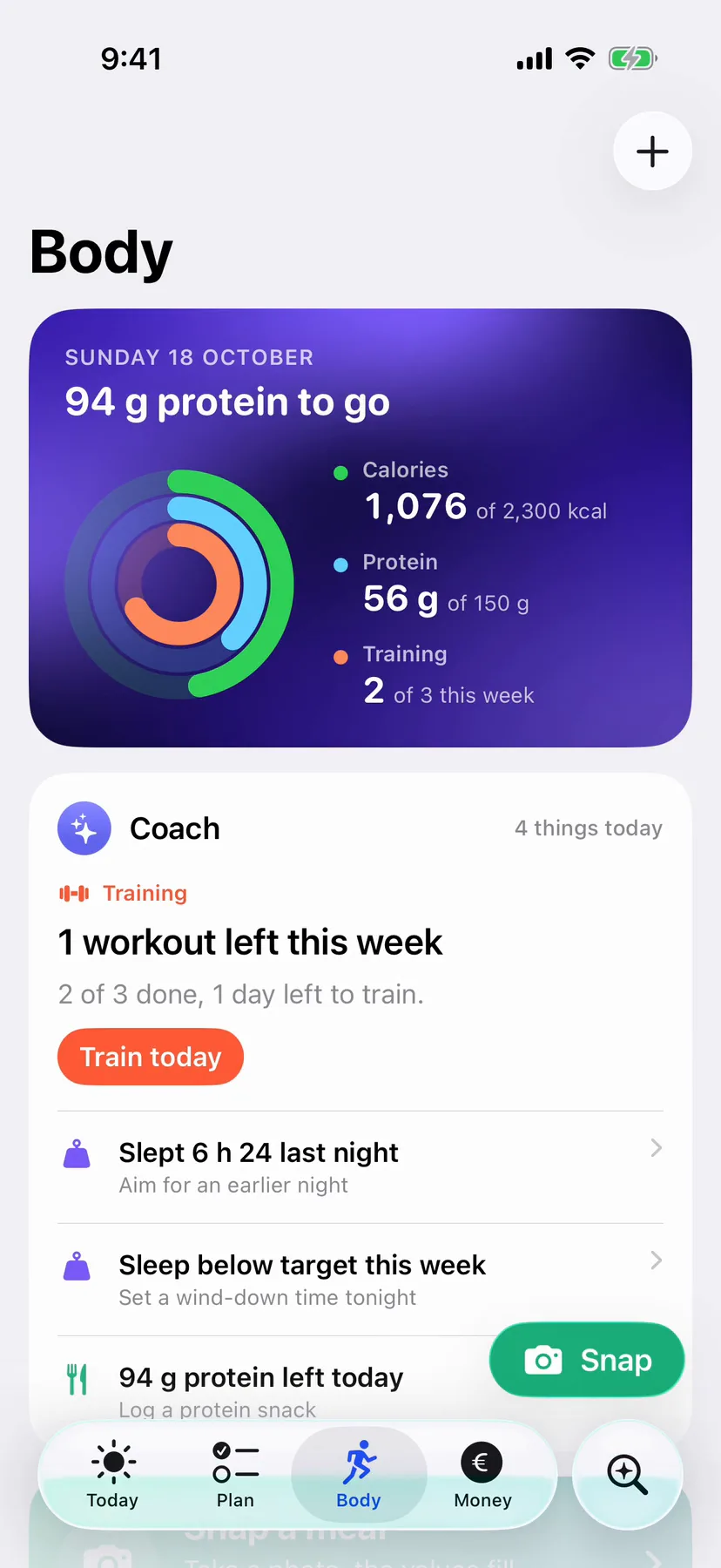
1 workout left this week
2 of 3 done, 1 day left to train.
Train today
Sleep
Slept 6 h 24 last night
1 h 06 under your 7 h 30 target.
Aim for an earlier night
Documents
Home insurance certificate expires in 12 days
Expiry date Fri 30 Oct.
Start the renewal
People
Reach out to Hugo Bernard
Last contact 26 days ago; you wanted every 21 days.
Send Hugo a message
Money
Travel up 12% on all of September
€103.83 so far in October against €92.99 in all of September.
Body
Training, food and your body come together with the coach, and Apple Health feeds it what your iPhone and Apple Watch measure.


Tick a set and the rest countdown starts, in the Dynamic Island and on the Lock Screen, with Done set one tap away. A notification tells you when the rest is over.
Tap the island here to expand it. On iPhone, touch and hold it.
Every rep done last time at RPE 8 or less? The coach suggests one more rep, or 2.5 kg more (1 kg on dumbbells). No progress in three sessions? A 10 percent deload.
Each set shows what you did last session. Records, estimated one-rep max and a plate calculator are built in.
Calories, protein, carbs and fat against the targets you set, and plain numbers until you set them. Search, favourites, recents, barcodes and recipes.
Sleep, steps and weight from Apple Health feed the brief, sleep and weight feed the coach, and resting heart rate and heart rate variability show beside them on the Body tab. Workouts, weight and water go back to Health, and food too if you choose.
Apple Watch
Your iPhone plans and reviews. Apple Watch is for doing: a workout at the gym, water or a meal in a tap, and what is left today at a glance.
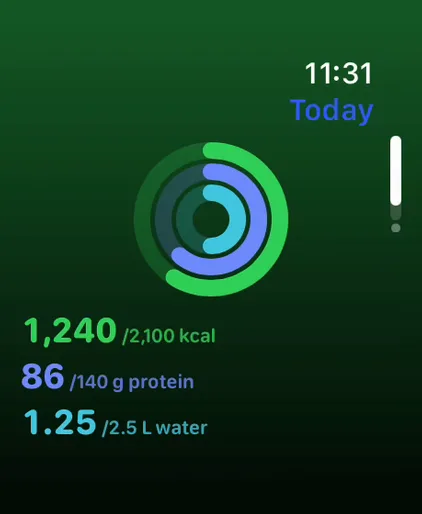
Calories, protein and water against your targets, as rings. No target, no ring: just the numbers.
Weight and reps come from your plan, the coach’s suggestion or last time. Turn the Digital Crown to change them, then tap Done, or just double tap.
Done starts the rest. It names the next set and taps your wrist 10 seconds before the end, and again at zero.
Run, walk, ride, row or HIIT, with time, heart rate and active energy, and distance for runs, walks and rides.
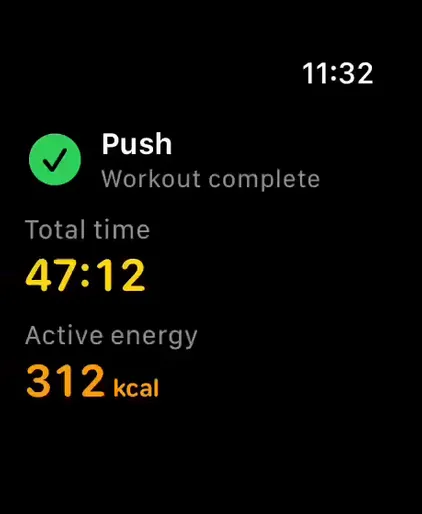
Every workout ends with a summary: time, energy and heart rate, with sets and volume for strength or distance for cardio. With Health access it is saved to Apple Health, and it is sent to Life OS on your iPhone.
+250 ml from the Food page, or 50 ml to 1.5 L with the Digital Crown, in 50 ml steps.
Favourites and recent foods from your iPhone, each with the portion you usually log. One tap logs it, and for five seconds another tap undoes it.
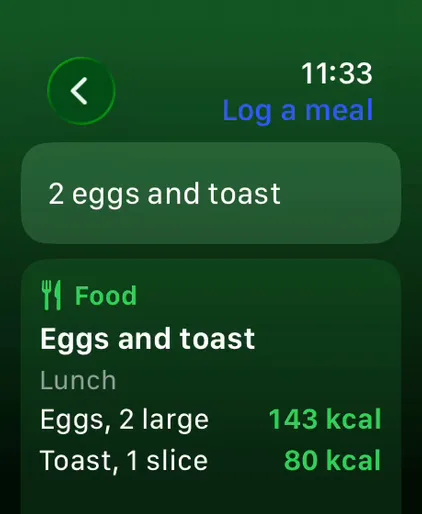
Dictate or scribble “2 eggs and toast”. Your iPhone’s assistant reads it and the cards come back to confirm with a tap. iPhone out of reach? Send the words to its inbox and review them later.
Calories and protein with the Crown when you know the numbers, and your weight in 0.1 kg steps.
Today 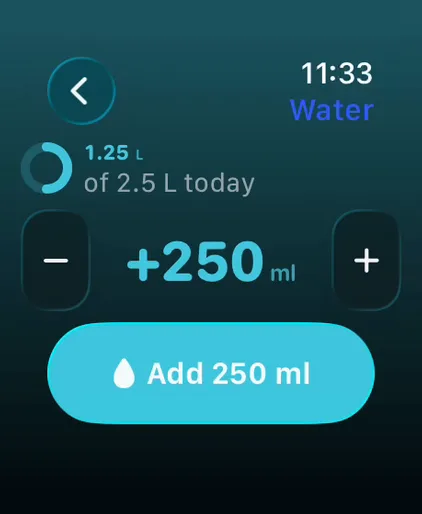 Water
Water 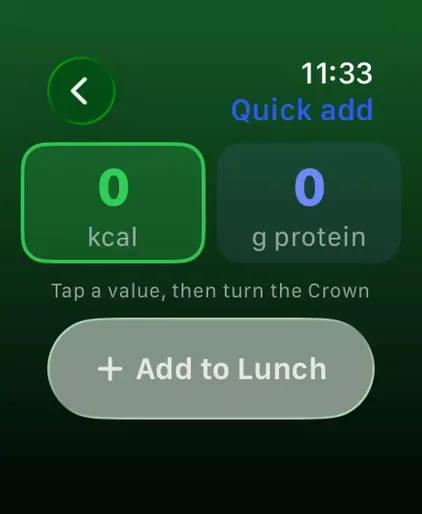 Quick add
  Say a meal
 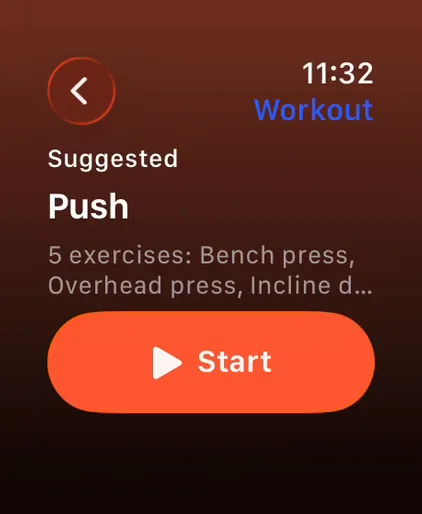 Training
 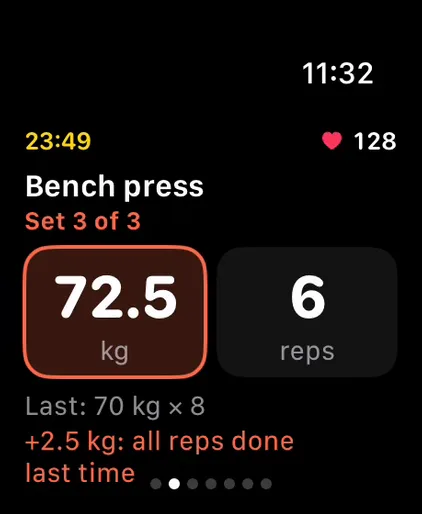 A set
A set 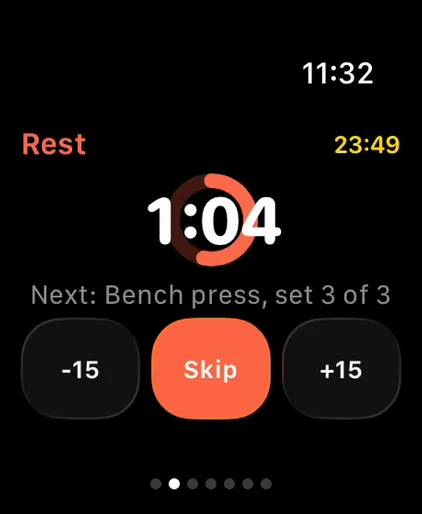 Rest
Rest 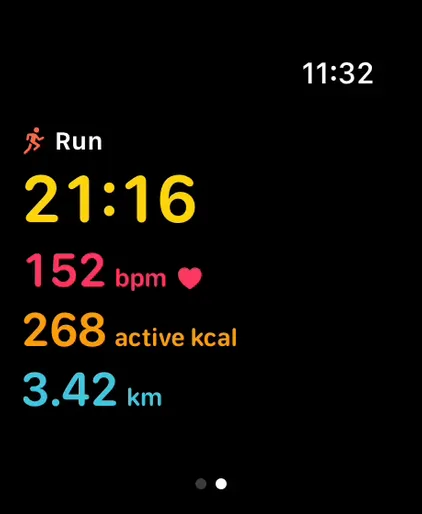 Cardio Summary
 Complications for calories left, calories and protein, water, and what is next: today’s routine until you train, then calories left. A Today card asks the Smart Stack to show it when you wake up, around meals and while today’s routine is still to do.
Log a workout on your iPhone and its rest countdown shows in the watch’s Smart Stack; focus sessions too.3 Add water from Control Center on the watch, 250 ml at a time.
Your iPhone sends today’s targets and totals, your foods, your routines and the coach’s note. Everything you log on the watch goes back to your iPhone and is applied once. No account, no server.
Money
Import a Revolut statement and every row lands in its account: duplicates skipped, categories learned from your own rules, balances kept for each account. Budgets, bills and subscriptions follow.
Revolut statements, imported. Each product and currency maps to an account once, and every import reports what was added, skipped as a duplicate, pending or failed.
The month at a glance. Spending against your budgets, a donut by category, six months of money in and out, and net worth by account.
Bills found for you. A merchant paid about the same day for three months or more, with amounts within 10 percent, is offered as a bill. Track it and you get a reminder before it is due.
Categories that learn. Set a category once for a merchant and it sticks. Merchants left over can go to the assistant as suggestions you accept.
Life
Life areas hold goals, goals hold projects, projects hold tasks, and an inbox catches everything until you decide where it goes.
Smart lists, a flag for every promise, and swipes to plan for today or move to tomorrow. Done tasks that repeat come back on their next day.
A goal tracks a number, milestones, an account balance or a habit, and shows where it should be today if it has a deadline.
Start a focus session on a task and it counts down in the Dynamic Island and on the Lock Screen, then adds the time to the task.
One tap to log, streaks that skip unscheduled days, a 26-week heatmap and reminders.
Mood and energy, a highlight, gratitude, rotating prompts, and what you wrote on this day.
Who you meant to call, birthdays coming up, gift ideas, and every call and lunch, logged.
Scan or import into a vault that can lock with Face ID, searchable by the text recognised on device, with reminders before anything expires.
Widgets and more
Widgets for the Home Screen and the Lock Screen that you can tick and tap, controls for Control Center and the Action button, Live Activities, Siri and Shortcuts. Ticking a task, logging a habit or adding water takes one tap, without opening the app.
Today, with check buttons that work from the Home Screen.
Habits: tap one to log it.
Food: calories left, and Snap.
Coach: the most important thing it noticed today.
Training: this week against your target.
Next up, on the Lock Screen.
Five controls, each one tap.
Phrases that work as soon as Life OS is installed, and the same actions in Shortcuts.
Privacy
Life OS has no account and no server. Your records stay on your devices, and you decide what, if anything, an assistant gets to read.
The assistant runs on Apple’s on-device model unless you choose otherwise. Those requests do not leave your iPhone or Mac.4
Add your own Anthropic API key and the meal photos you choose to analyse go to Claude, even while the assistant runs on Apple’s model. Choose Claude as the assistant and your requests, with the data each one needs, go to Anthropic too. The key stays in the Keychain, out of backups.
With intelligence off, nothing goes to an assistant, and capture rules, the coach’s detectors, the brief and the review still work. A barcode you scan is still looked up in Open Food Facts.
Documents sit behind Face ID. The vault locks again when you leave the app, or after ten minutes without opening it.
Export everything to one backup (a file, or a folder when your vault holds documents), keep it where you like, and import it with a preview of what it holds.5
Mac
The same Life OS, with a sidebar for every part of your life and the screens you know beside it. Quick capture is a Command N away.5
Life OS isn’t on the App Store. Leave your email address and you’ll hear once, when it can be installed.
By signing up you agree to get one email, when Life OS can be installed. Your address is used for nothing else, shared only with the service that sends that email, and deleted afterwards; see the privacy notice. In this preview sign-up is not connected yet, so nothing you type here is sent or stored.
Life OS runs on iPhone with iOS 26 or later. The Apple Watch app comes with it and needs watchOS 26 or later, and the Mac app needs macOS 26 or later.